Color map effect
Applies a color-map effect on an object or layer.
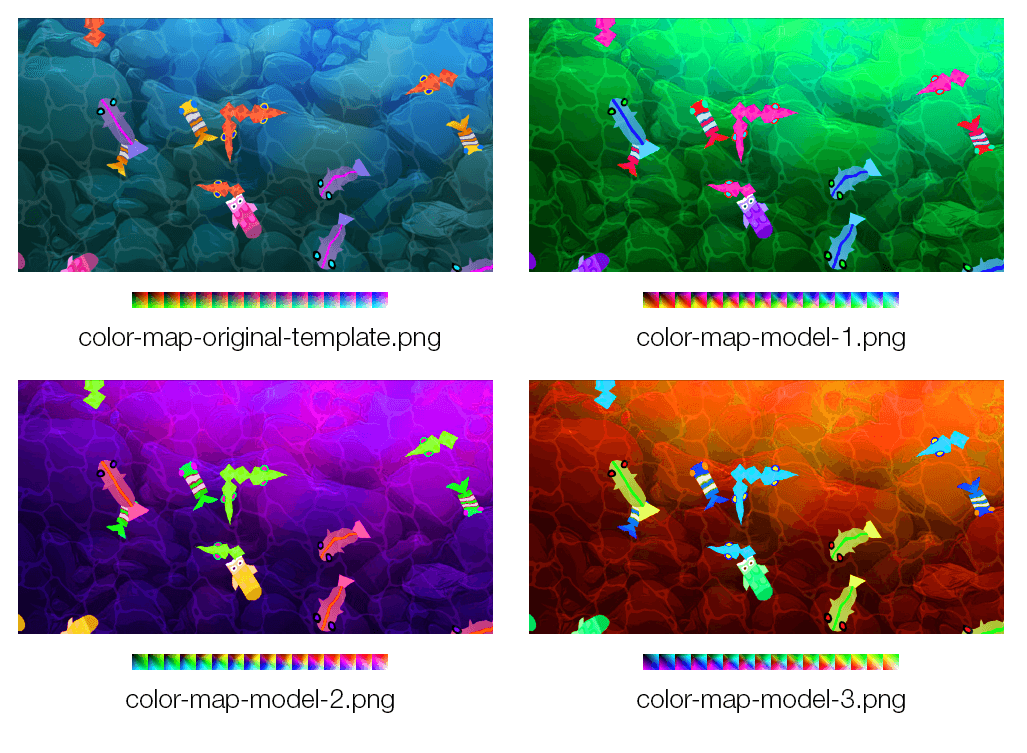
This works by modifying a reference "color image map" containing all possible colors.
Create your own color map
- Download the reference color map image:

- Use an image editor (like GIMP or Photoshop) to tweak the color the reference color image map with some filters. For instance, you can use GIMP Rotate Colors filter.
- Try some filters on your assets first to get an dea of the end result
- Once you found the right settings, apply the same filters to the reference color map image.
- Save it as a new file
- Use this new image as the color image map for the effect in GDevelop.
Try some ready-to-use color maps
- color-map-model-1.png :

- color-map-model-2.png :

- color-map-model-3.png :

Parameters
- Mix: how strongly the color map is applied, as a percentage. Lower it to blend the recolored result with the original colors.
- Disable anti-aliasing: use "nearest" pixel rounding when reading the color map. Enable this for sharp, hard color transitions (for example when mapping to a limited palette); leave it off for smooth gradients.
Reference
All effects are listed in the effects reference page.